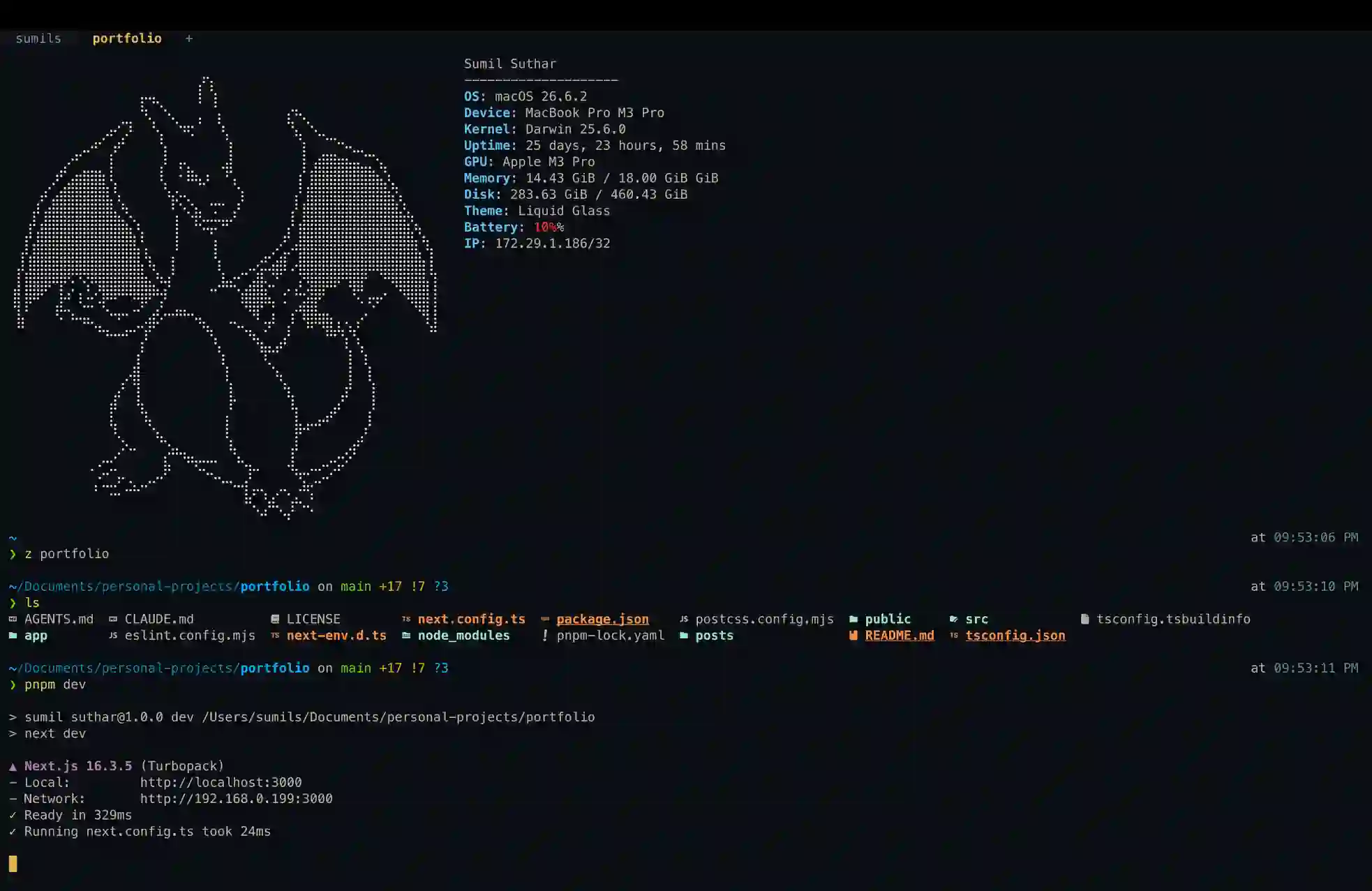
The very first thing I install on a Mac is Homebrew. Nearly every tool and app I rely on is available which makes bootstrapping a machine painless.
I keep all my configuration in a personal dotfiles repository. When I set up a fresh system, I clone my dotfiles repo and run:
brew bundle install
This reads my Brewfile and installs everything listed in it in one shot. Homebrew Bundle is basically lockfile for your system packages.
Terminal
I use WezTerm. It's lightweight, has a low CPU/memory footprint, and is configured entirely in Lua, which is a genuinely best language to write config in.
My WezTerm config lives in my github dotfiles repo — clone it into ~/.wezterm.lua and that's all it. It includes custom keybindings for navigating between them and splitting panes (vertical/horizontal).
Shell
I use Zsh, supercharged with Oh My Zsh. macOS ships with Zsh by default now, but if yours doesn't have it, Homebrew can install it.
My .zshrc is in github dotfiles repo, though not everything is in it you might need to add like env vars which will be relevant to your device.
Prompt
I use Powerlevel10k — fast, no-nonsense, and highly configurable. Worth turning on the transient prompt option if you adopt it. My config (~/.p10k.zsh) is in the dotfiles repo.
CLI Tools
- eza — a modern, faster replacement for
ls - volta — manages Node.js versions; lighter than NVM and auto-switches versions per-project via the
voltafield inpackage.json - fkill — kills processes without the ceremony of looking up a PID and running
kill -9 - fzf — fuzzy search over shell history, far more usable than the default
Ctrl+R - OpenCode — an open-source AI coding agent that runs in the terminal and works with multiple AI models
Plugins I used
| Plugin | What it does |
|---|---|
| zsh-autosuggestions | Suggests commands as you type, based on history |
| zsh-syntax-highlighting | Highlights invalid commands in red before you run them |
| z | Jump to frequently visited directories by fuzzy name — z github takes me straight to ~/code/github |
| git-extras | Adds handy git commands, like git undo (undo last commit) and git delete-branch <name> (deletes both local and remote branch) — full command list here |
| bat | modern cat |
Aliases
# zshrc
alias zs="source ~/.zshrc"

# eza = ls
alias ls="eza"

# node_modules clean
alias nuke="rm -rf node_modules"

# kill process
alias k="fkill -v"

# git
alias gdb="git delete-branch"
Applications
- Docker Desktop — runs and manages Docker containers locally on macOS
- CommandX — brings standard
⌘Xcut-and-paste behavior to macOS for files - Bitwarden — password manager
- Raycast — a fast, keyboard-first application launcher and productivity command bar for macOS that is a powerful Spotlight replacement
- LocalSend — quick file transfers between an mobile phone and Mac or devices on the same network
- Proxyman — native HTTP debugging proxy for inspecting and debugging network requests
- ImageOptim — fast image compression tool
- SVGOMG — SVG optimization